Blog5 min read
How to add links to your YouTube Shorts
Links in Shorts descriptions and comments don't work. Here are the three places a viewer can actually tap through, and how to set each one up.

Hana
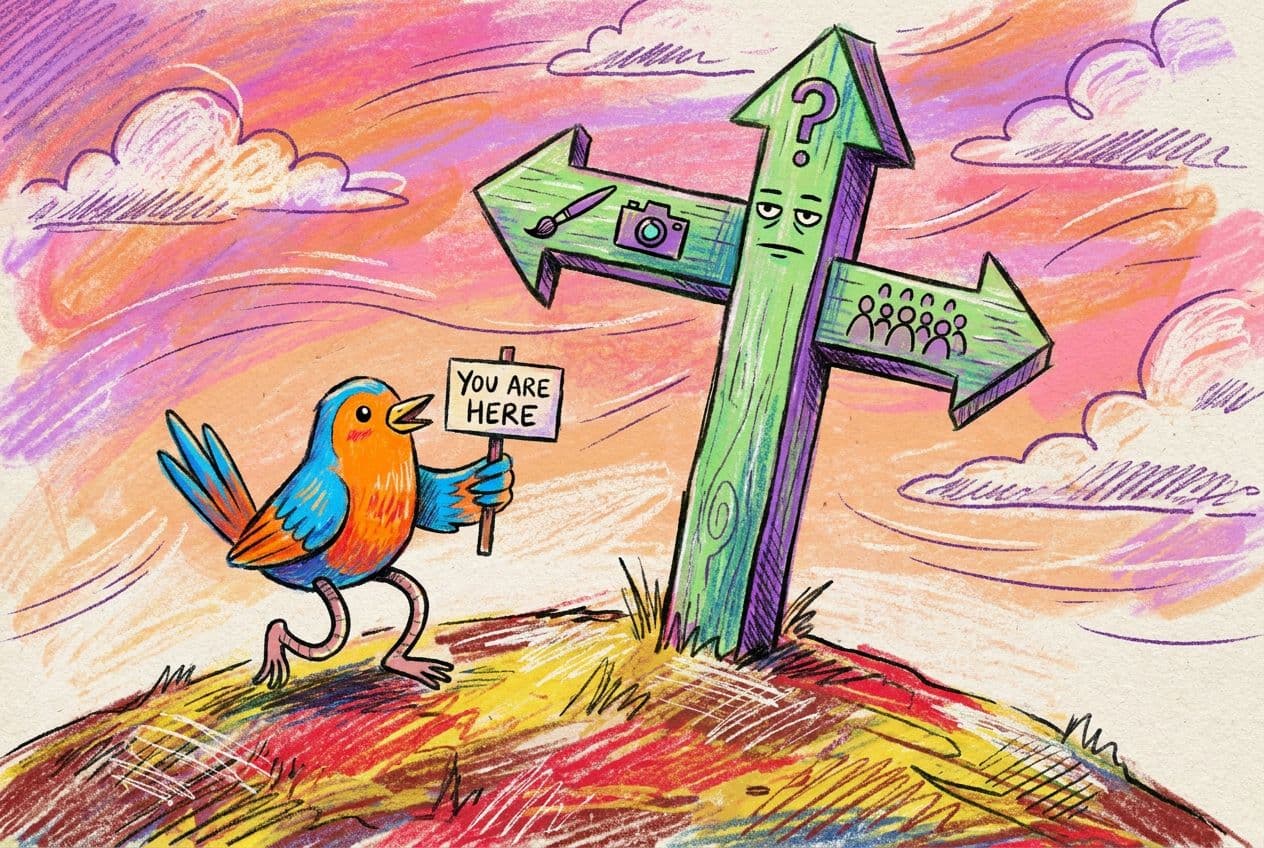
Say you paste your shop link into the description of a Short and publish it. Thousands of people watch. Nobody can tap it. The URL sits there as plain grey text, and the only way to reach it is to copy it by hand, which almost no one does on a video that lasts thirty seconds.
That isn't a bug. YouTube made URLs in Shorts descriptions and comments non-clickable to cut down on spam and scams, and it says so in its help page on sharing links with your audience. Mentions and hashtags in those places still work. Web addresses don't.
So where can a viewer tap? There are three places, and each does a different job.
Where do links work on Shorts?
- Your channel profile. You can show up to 14 links on your channel page. The first one sits prominently near the Subscribe button, and the rest appear when a viewer taps to see more.
- The related video link. Each Short can carry one clickable link, below your channel handle, to another video, Short or live stream on your channel.
- A brand link. If a Short is part of a reported brand deal, YouTube lets you add a link to the brand's website.
Only the first is a link to somewhere you choose. The second keeps people on YouTube, and the third is limited to sponsored work. That makes your channel profile the workhorse, so start there.
How to add links to your channel profile
- Sign in to YouTube Studio.
- Choose Customization from the left menu, then Profile.
- Under Links, click Add link, then enter a title and the URL.
- Click Publish.
Those steps come from YouTube's guide to managing your channel's profile. Links have to follow YouTube's external links policy.
Order matters here. Since only your first link gets the spot next to the Subscribe button, put the one you most want a viewer to tap at the top. If you have 14 links to add, most of them will be seen only by people who go looking.
That's the case for using one link for everything. Say you post Shorts about pottery. You sell mugs in an online shop, teach a monthly class you sell tickets to, and send a newsletter. Three links compete for the top slot. Give the slot to a single page that holds all three and you never have to choose. A Linky page does that job, and you can change what's on it without going back into YouTube Studio.
How to add a related video to a Short
The related video is a clickable line below your channel handle in the Shorts player. It's the one link that sits right in the player, so it's worth using well.
- In YouTube Studio, choose Content from the left menu.
- Click the Short you want to edit.
- Pick a Related video from your channel, then click Save.
The video has to be public or unlisted, and it has to follow the Community Guidelines. The YouTube Help page for related videos also says the feature is only available with advanced feature access.
This link can't go to a website, so it won't sell anything by itself. What it does well is move a viewer from a thirty-second clip to the ten-minute video where you explain the whole thing. If your Shorts are the trailer and your long videos are the film, this is the ticket booth.
What about advanced features?
Two of these tools depend on advanced features, so check yours before you spend an hour planning around them. According to YouTube's page on advanced features, you can get access in a few ways:
- Channel history. Some channels qualify automatically once they've built up enough of a track record.
- Identity verification. A valid ID or a video verification unlocks access right away.
- Phone verification. This gets you the intermediate tier, which can lead to advanced access but doesn't grant it on its own.
If your related video option is missing, this is the likeliest reason. Verify your identity and look again.
Can you add a link to a brand's site?
Only for sponsored work. YouTube's help page for brand links on Shorts says you have to be working on a reported brand deal campaign, and the link must lead directly to the website of the brand you're partnered with.
You set it up when you upload. Choose Paid promotion & brands, select your brand partner, accept the share agreement, and check that both toggles on the "Link to a brand's site" card are on. The link then shows in the description and in the player.
There are two limits. It appears only to mobile viewers, and only on organic views, not on paid impressions. If you're an affiliate or you sell your own products, this doesn't apply. Those links belong on your channel profile.
What should you say in the Short itself?
Since you can't put a tappable link in the video, the video has to tell viewers where to look. A few habits help:
Say where the link is, in words. "Link's on my channel page" is clearer than "link in bio". Point people to your profile and name the thing they'll find there.
Match the link to the Short. If a Short demos one product, viewers who tap through want that product, not a menu of twelve things. When the top link is a page with several options, put the one from your latest Short first on that page.
Change the top link when your focus changes. A launch link that stays up after the launch sends people to a page that says "sold out." Update the first link whenever what you're promoting shifts. How often you should update your link in bio is a good rule of thumb for that page too: whenever what's on it stops being true.
For a wider look at your setup beyond Shorts, Linky has a short guide on adding a link in bio on YouTube.
Put it to work today
Open Studio, go to Customization and then Profile, and check what your first link says. Then open your three most-watched Shorts and add a related video to each. Together they cover the two places a viewer can tap on any Short.
If you sell, book or collect anything, give that first slot to one Linky page that holds all of it. You can make one free at lin.ky.